Changes tab
While viewing a claim, the Changes tab allows you to see all changes made to all fields on the open claim. If the claim has not been changed, the tab will contain a message that says no changes have been made to the claim. Otherwise, the tab opens with two buttons that allow you to choose the level of detail you want to view:
- Load Summary opens a list of fields in which the data has been changed from what it was in the claim submission file. Once you start reviewing changes, the button becomes View Change Summary.
- Load Details opens a list of all changes made to every field. Once you start reviewing changes, the button becomes View Change Details.
The top of each view contains a set of claim fields for reference while reviewing the changes. The table of changes is color-coded:
| Entry color | Action | Description of change |
|---|---|---|
| Green | Updated | The field already contained data, and the entry changed or was deleted by a user. |
| Blue | Inserted | Data was entered in an empty field. |
| Dark red | 1. Deleted 2. Line deleted |
1. Data was removed by the system during claim submission. 2. A recurring line was deleted. All populated fields are listed separately. |
Summary view
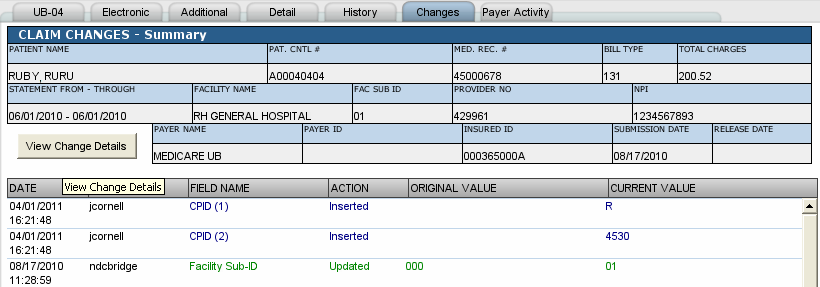
- Displays the most recent changes to fields.
- Default order is by date and time in the order changes occurred. Click any column heading to change the display order.
- User is the person or process that made the most recent change to the field.
- The number of changes made to the field displays in parentheses after the field name. Check the Details to see a line for each change to the field.
- Original Value displays the field entry before the most recent change. If it is empty, there was no data.
- Current Value displays the new field entry. If empty, then data was deleted.
Details view
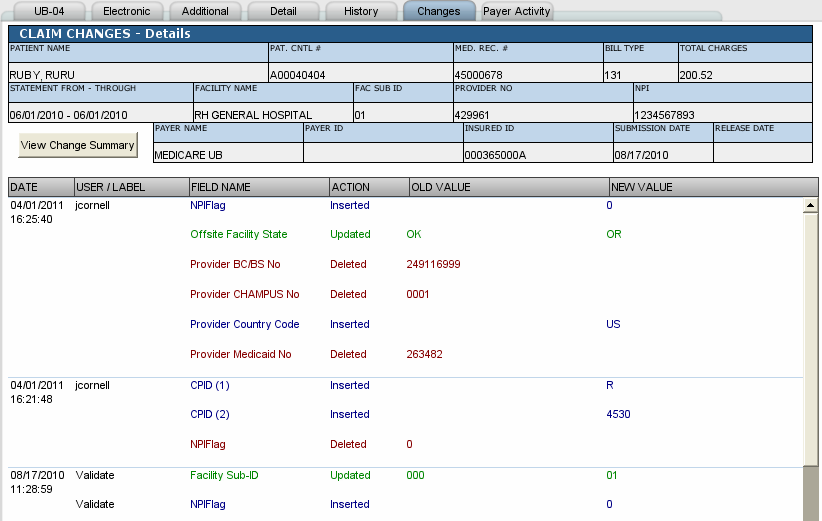
- Displays all changes to fields.
- Default sort is by Save Group. All changes saved to the claim at one time are grouped together. Save Groups are ordered from most recent to oldest. Click any column heading to change the display order.
- User/Label is the person or process to actually make the change. If the change happens during claim submission, then this column shows the name of the file containing the bridge routine that made the change and the name of the bridge routine. If system validation makes the change, then this column displays validate.
- Old Value displays the field entry before the most recent change. If it is empty, there was no data.
- New Value displays the new field entry. If empty, then data was deleted.
Notes
- Change information is not sent to payers.
- For a printed copy of the changes shown on this tab, create a Claim Changes History - All report, targeting the claim. This can be a very large report, so the best practice is to refine the target to just those claims you need to see.