Auto print, Sweep time
Menu location: Maintenance menu, Auto Print, Sweep Time
Use Sweep Time to set the schedules used by Agent to move files from the system to your local network drive or workstation. The Agent automatically checks for the types of files you select in file type, and then it handles the files accordingly to download and/or print them. Auto Print does the controlling while Agent does the moving.
Follow these steps to set up and enable the sweep time schedule:
- Type a destination path where downloaded files should be saved. (You can override this path if needed in File Type.)
- Select the Enabled checkbox.
- Select the days of the week when Agent should sweep for your selected file types.
- Type a From and Through time frame when the Agent sweeps for files on the selected days.
- Select the sweep interval in the Check status every [ ] minutes drop down list.
- Click Add.
- If needed, click ADD A NEW TIME in the Schedule panel and repeat steps 3-6 to set up additional schedules.
- Click OK to save your settings.
- Stop and restart the Agent to update its schedule information and list of active Windows printers.
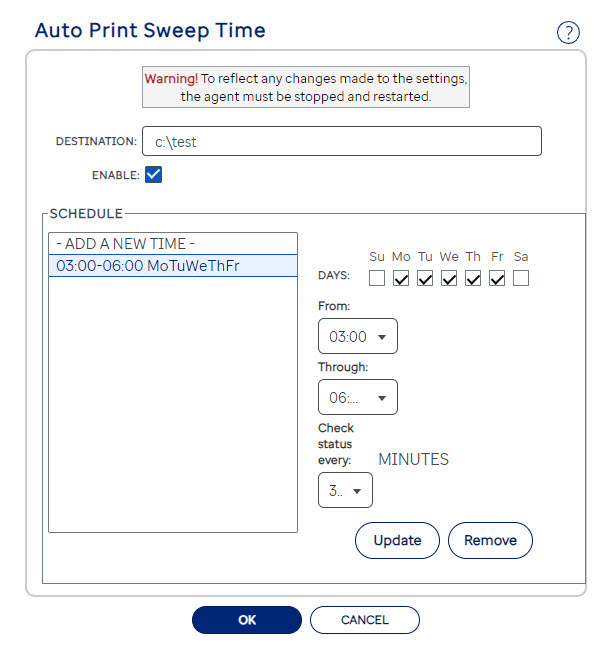
In this example, Agent will check for your selected file types Monday through Friday every 30 minutes from 3:00 a.m. until 6:00 a.m:
Notes
- The Agent must be installed on your computer. Call customer support for installation information, if you do not already have this item installed.
- Each sweep increases processing time. Set the sweep interval for the longest useful interval.
- Set as many sweeps as possible to run during off hours. Don't forget to leave the Agent computer running.
- You can set up multiple sweeps.
- You can temporarily stop all auto-sweeps by clearing the Enabled checkbox. You must stop and restart the Agent for this to take effect.
- Schedules are updated at intervals and whenever the Agent starts. To force a change to take effect immediately, manually stop and restart Agent.