Show error text
Toolbar button: Show Error Text 
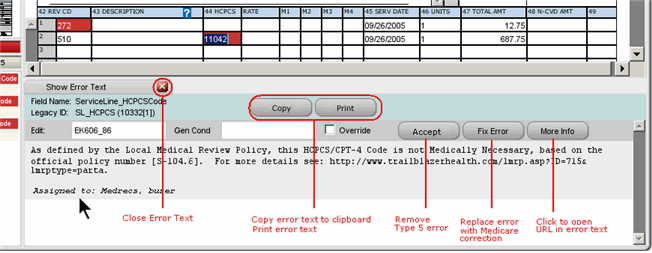
Move to a field with an error, and then click the Show Error Text button to display a panel that includes the field name location of the error, edit error name, error description, and action buttons.
| Field/Button | Description |
|---|---|
| Field name | Identifies the claim field flagged with the error. This is also the field name in the Error List. |
| Legacy ID | This item is an older and shorter name for the same claim field. |
| Copy | Click Copy to capture all the Error Text to paste it into another document for reference. Example: paste it into an online service order for Support. |
| Click Print to send the Error Text to your local printer to create a hard copy. | |
| Edit | This is the name of the edit that flagged the error. |
| Gen Cond | This item is an internal Optum reference. |
| Override | This checkbox allows you to overrule an eligible error, if you have the appropriate system permission to perform the action. |
| Description | The text entry below the Edit name provides the Optum message about the error. This is the standard error message. |
| Additional info | If your site added a custom message to supplement the standard error message, you will see the Additional Info button. Click the button to display the custom error message. |
| More Info | This button is only available when you can hyperlink to additional information from the payer. In the example, you can click the More Info button to open a new browser window to the listed web address. |
| Fix Error | This button is only available with Medicare Direct Entry eligibility errors. With this button, you have the option to accept the information provided by the Medicare system versus what was entered on the claim. |
Notes
- Accept, Fix Error, Additional Info, and More Info buttons are hidden unless the error allows the function.
- The black arrow shows where error assignments display. The order of display is: departments by priority and then individual users.