Go to claim
The Claim List key combination (Ctrl+F5) opens the list of claims you have selected to work. Or, you can use the Claim List button on the toolbar to select a claim review option. You can also combine claims from the list.
Claim list: Review options
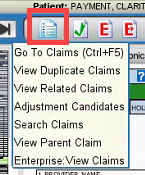
| Review option | Description |
|---|---|
| Go To Claims | Opens the primary list of claims that contains the current viewed claim.Select any claim from the working group, or combine claims. The other options are alternate lists. |
| View Duplicate Claims | Opens a list of payer claim copies. Includes all released and unreleased payer claims less than 90 days old that meet your site criteria for being a duplicate. Set criteria in the Maintenance menu, System Administration, Claim Options, Duplicate tab. |
| View Related Claims | Opens a list with all released, unreleased, and deleted payer claims that meet your site criteria for being related to the open payer claim. Set criteria in the Maintenance menu, System Administration, Claim Options, Related tab. |
| Adjustment Candidates | Opens a list of potential source claims for your unreleased secondary or subsequent payer adjustment claim, if your site uses the Adjustment Claim Configuration feature. Use the list to find and copy the original DCN to paste in the adjustment claim. |
| Search Claims | Opens a mini-filter so you can enter data and look for any claim that matches it. Example: Enter BEN in the Patient Last Name field to find all claims on which the patient last name begins with BEN such as BENT, BENTLEY, BENSON, etc. |
| View Parent Claim | Opens any source (parent) claim of the claim you are currently viewing. For example, if the open claim is a secondary claim created from remit data then this option opens the primary claim. |
| Enterprise: View Claims | Uses the Enterprise Patient ID to find and associate claims related to this encounter. When multiple sites are linked, Enterprise Patient ID search functionality will look across all linked sites to find related claims. |
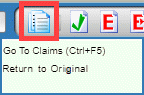
When you use one of the alternate claim lists, it replaces the Go To Claim list. To return to the original primary list from an alternate option, click the Go To Claims button again, and then click Return to Original or Return to Adjustment Claim:
Notes
- Check the title bar within the displayed list, if you are unsure which option is displaying. The primary list has Select Claim in the title bar. The alternate lists display Select Duplicate Claim
 Duplicating a claim creates an exact copy of a claim open in CFI., Select Related Claim, or Select Search Claim. In addition, the count above the claim navigation buttons indicates the list type when it is duplicates, related, or search.
- Many column headings in any claim list allow you to change the list sorting.
- There are two values in the Status column of any list. The first value indicates if the claim is released (R), unreleased (U), or deleted (D). The second value indicates whether the claim is accepted (A), rejected (R), or warned (W).
- If your site does not have any duplicate or related claim criteria set, then the claim lists will be empty.
- You can also use View Duplicate Claims to navigate to duplicate sent and unsent RRT claims from an open RRT claim, if your site uses the Regulatory Reporting Tool. Please note you cannot navigate to related payer claims from an RRT claim, nor can you navigate to related RRT claims from a payer claim.