Supervisor view of the home page
There are three different home page views. Your view is based on whether your user account has an assigned user role in user maintenance. This topic covers the supervisor page view for the supervisor role assignment. Other options include the biller view and a default view for no role assignment.
The supervisor view has six basic sections:
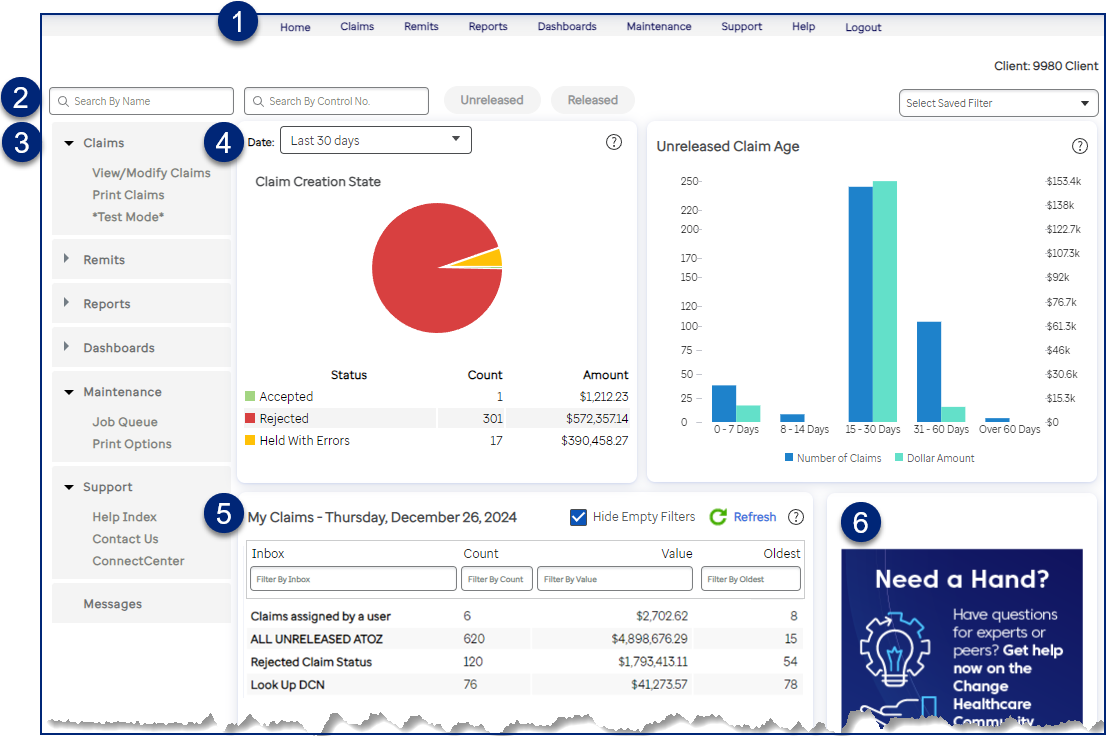
- Use the menu bar to navigate to a feature or task. Each option provides access to tasks you perform related to your claims, remits, reports, dashboards, and site maintenance. The available options are based on the system functions assigned to your group. Above the menu bar, use the drop-down arrow options to change your account password or access Help.
- Use the Quick Search bar to find and open a set of claims without navigating to the claim filter.
- The Quick Links section offers shortcuts to commonly used features or tasks. Click any heading to expand or collapse the options. The system keeps your displayed options anytime you navigate to the home page, even if you log out and then log in again. Click Messages to navigate to the site message list and review the status of events like claim submission, expiring passwords, generated reports, and more.
- The Claims Overview section displays the Claim Creation State and Unreleased Claim Age charts from the Operations Dashboard to provide quick status information on your home page. The Claim Creation State pie chart defaults to the time frame for Today. You can change this date selection as needed, up to the last 90 days.
- My Claims provides one-click access to claims that require your attention, if your site uses any of the workflow features.
- This section displays current news such as available courses.